The Machine Behind the Label Printer: Triage for Windows 10 Leftovers
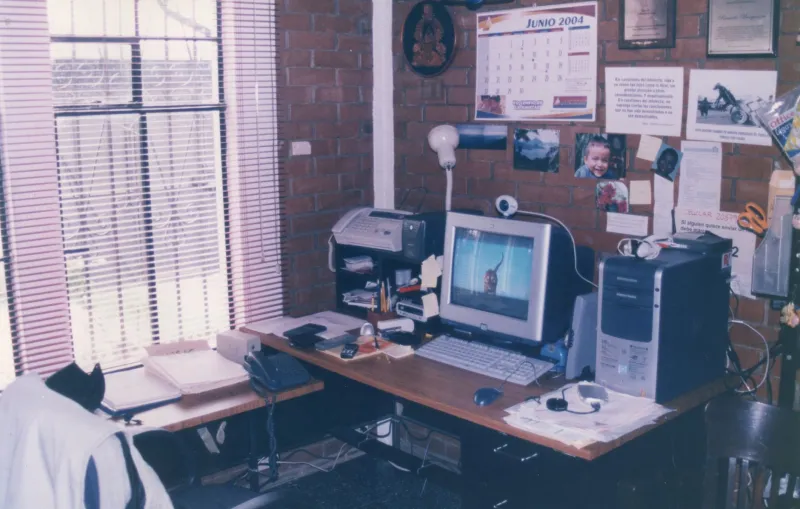
The deadline has been and gone. Consumer extended security updates for Windows 10 ended on 13 October 2026, and the main estate in most small UK offices has already moved on. But offices are untidy places. There is still the workshop laptop that runs the diagnostic cable, the desktop tucked behind the label printer, the spare the director uses at home, and the meeting-room PC nobody has logged into since the summer. Those machines are the leftovers. They do not need a scare story. They need a triage plan.
Start with a list, not a shopping basket
Before you buy anything, find out what you have. Check the router or firewall for DHCP leases, the Wi-Fi controller for connected devices, your Microsoft 365 sign-in logs, antivirus console, and any backup or remote-management tool. Walk the building. Open cupboards. Ask staff about work laptops at home. Look behind the label printer. Record the asset name, location, who uses it, what job it does, whether it touches email or the internet, what local data sits on it, and which peripherals depend on it. A simple spreadsheet is enough. The aim is not a perfect inventory; it is a list you can act on.
Sort by job, not by age
A 2017 laptop doing email is a different problem from a 2016 desktop that only runs the label printer. Put each machine into one of three buckets. First, local-only appliances: the PC chained to a label printer, a test rig, or an old piece of equipment. If it has no email, no browser, and no shared drive, the risk is lower, but it is not zero — USB sticks and local network access still matter. Second, general work machines: email, browsing, accounts, shared files. These are the ones to isolate or replace first. Third, occasional machines: the director's home spare, the meeting-room PC. They are easy to forget and often still have email.
Isolate the risky ones this week
For any general work machine still on Windows 10, act now. Block its internet access at the router or firewall, remove it from Wi-Fi, and disable its Microsoft 365 sign-ins if it is not needed for a critical local job. Remove saved credentials for shared drives. Put a note on it: do not connect to the internet. For a local-only machine, put it on a separate network segment or an unmanaged switch with no route to the internet, disable Wi-Fi, and control who can plug in USB devices. Isolation is a holding pen, not a fix. Keep a note of why each machine is isolated and who owns the decision. If it processes payments or customer data, treat it as urgent.
Weigh commercial ESU honestly
Commercial extended security updates are still a paid option for organisations, usually sold per device in yearly increments. They buy patches, not a new computer. That can be sensible for a machine tied to an expensive piece of equipment or a line-of-business app that cannot move yet. It is rarely sensible for a five-year-old laptop that only does email. Do the maths: ESU cost plus support time versus a refurbished Windows 11 machine. Also remember that ESU does not make unsupported apps safe or fix a failing hard drive. Set an end date before you buy.
Three replacement routes
Refurbished Windows 11 hardware is the default for standard office work. Check that the machine meets Windows 11 requirements, has at least 8GB of RAM and an SSD, and comes with a warranty. For laptops, ask about battery health. A good refurbisher will be clear about grade and returns. A new replacement makes sense where warranty, battery life, and longevity matter, or where the machine is customer-facing. A Linux swap can work well for a single-purpose machine — a label printer, a kiosk, a basic browsing station — but test the printer driver and any line-of-business app first. Do not move a Microsoft 365 desktop user to Linux unless you have checked the web apps and their workflows. For the machine behind the label printer, a small Windows 11 mini PC is often the cheapest clean fix.
A realistic order of work
Week one: list every Windows 10 device, isolate the general work machines, and tell staff what is happening. Week two: decide which equipment-bound machines need a short commercial ESU bridge, and order refurbished or new hardware for the email machines. Weeks three and four: migrate the label printer or workshop PC to its replacement and test the peripherals. Next quarter: consider Linux for kiosks and retire the rest. Keep a short known-leftovers list so the next person does not have to rediscover the cupboard.
The boring bits still matter
Back up local data before you retire anything. Remove the device from antivirus, backup, DNS, DHCP, and any remote-management tool. Wipe the disk. Update the asset register. Check software licences. If the machine held customer data, keep a record of what you did. These steps are not glamorous, but they stop a tidy-up from becoming a data problem.
The end of consumer ESU is a prompt to clean up, not a reason to panic. Most small firms need a list, a few isolations, and a sensible replacement plan. If you want a second pair of eyes, 25Seven IT can help you sort the stragglers without turning it into a project.